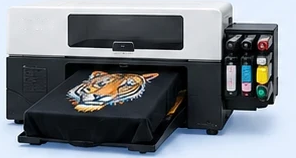
DTG
Garment printing
Placement, platen setup, color preparation, white underbase, and RIP proofing.
 Makevia Design Studio
DTG · DTF · UV · Sublimation · Laser · Cut · 3D print software for Mac
Makevia is print software for DTG, DTF, UV, sublimation, laser engraving, vinyl cutting, embroidery and 3D printing, in one Mac app. It turns your artwork into print-ready ink layers, including white ink, and sends the job to your printer or saves the print files.
Works with: Brother GT-3 · Epson SureColor, Stylus Pro and EcoTank · DTF and UV printers · Hoson-board printers · Canon imagePROGRAF · Cricut · GRBL lasers · 3D printers. See how each one is supported · Compare Makevia with other RIP software
Built for macOS 12 or later. Hardware capabilities vary by device and verification level.

One connected production studio
Makevia brings artwork preparation, placement, preflight, costing, device profiles, and production handoff into one visual workflow. Choose what you are making, then follow the steps that matter for that process.
Choose what you are making
Start from the process—not a confusing list of drivers. Each category opens its recognized devices, preparation tools, and clearly labeled support status.
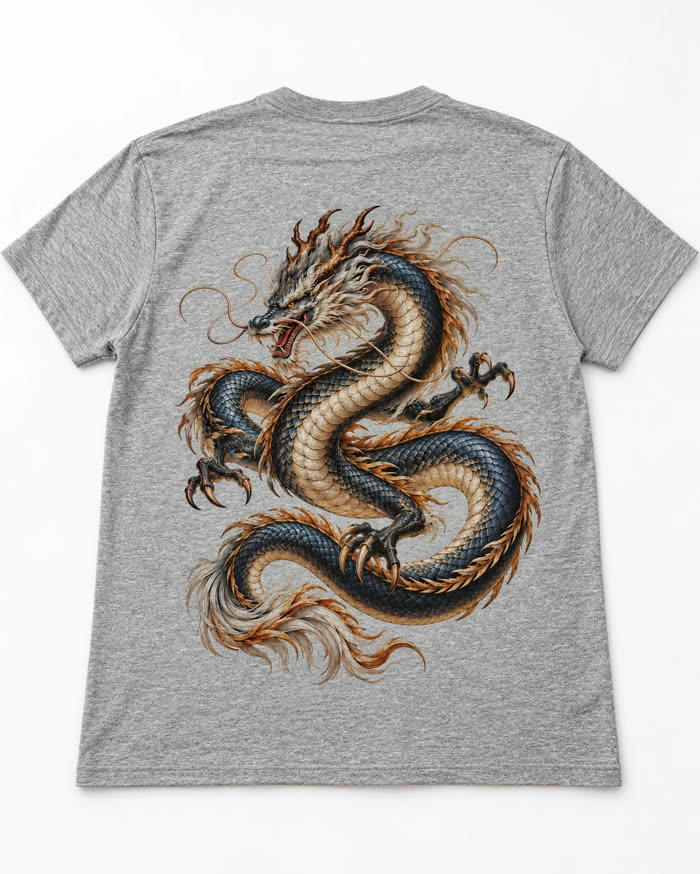
Placement, platen setup, color preparation, white underbase, and RIP proofing.
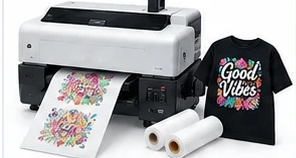
Mirrored artwork, transfer-film layouts, white layers, and production costing.
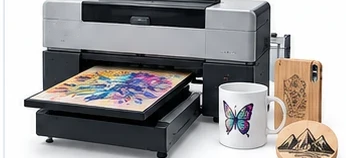
Prepare rigid-media artwork with measured placement and device-aware output.
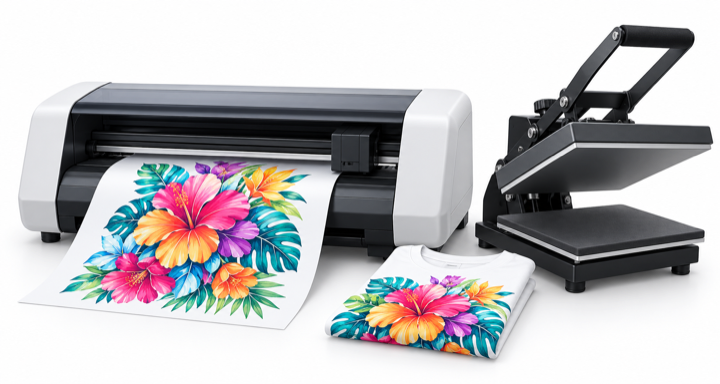
Size, mirror, color-check, and arrange artwork for transfer workflows.
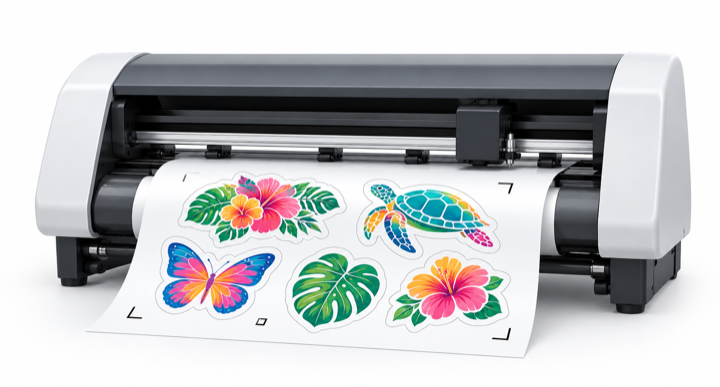
Prepare artwork and cut paths for print-and-cut production.
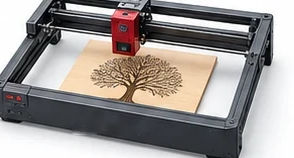
Inspect designs and prepare jobs for supported laser workflows.
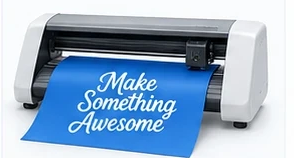
Import SVG artwork, arrange a measured mat, assign materials and operations, run preflight checks, and export safely to Cricut Design Space.
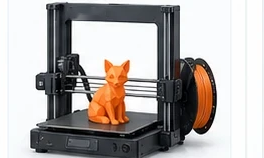
Inspect mesh and sliced files before committing machine time and material.
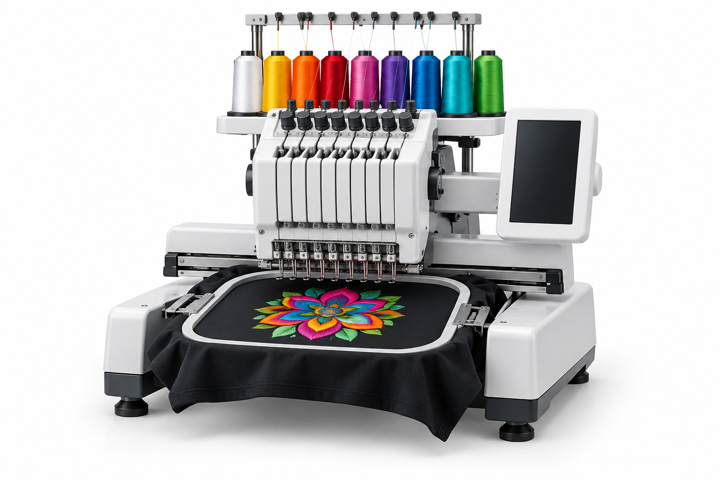
Read DST dimensions, color changes, stitch count, hoop fit, and costing.
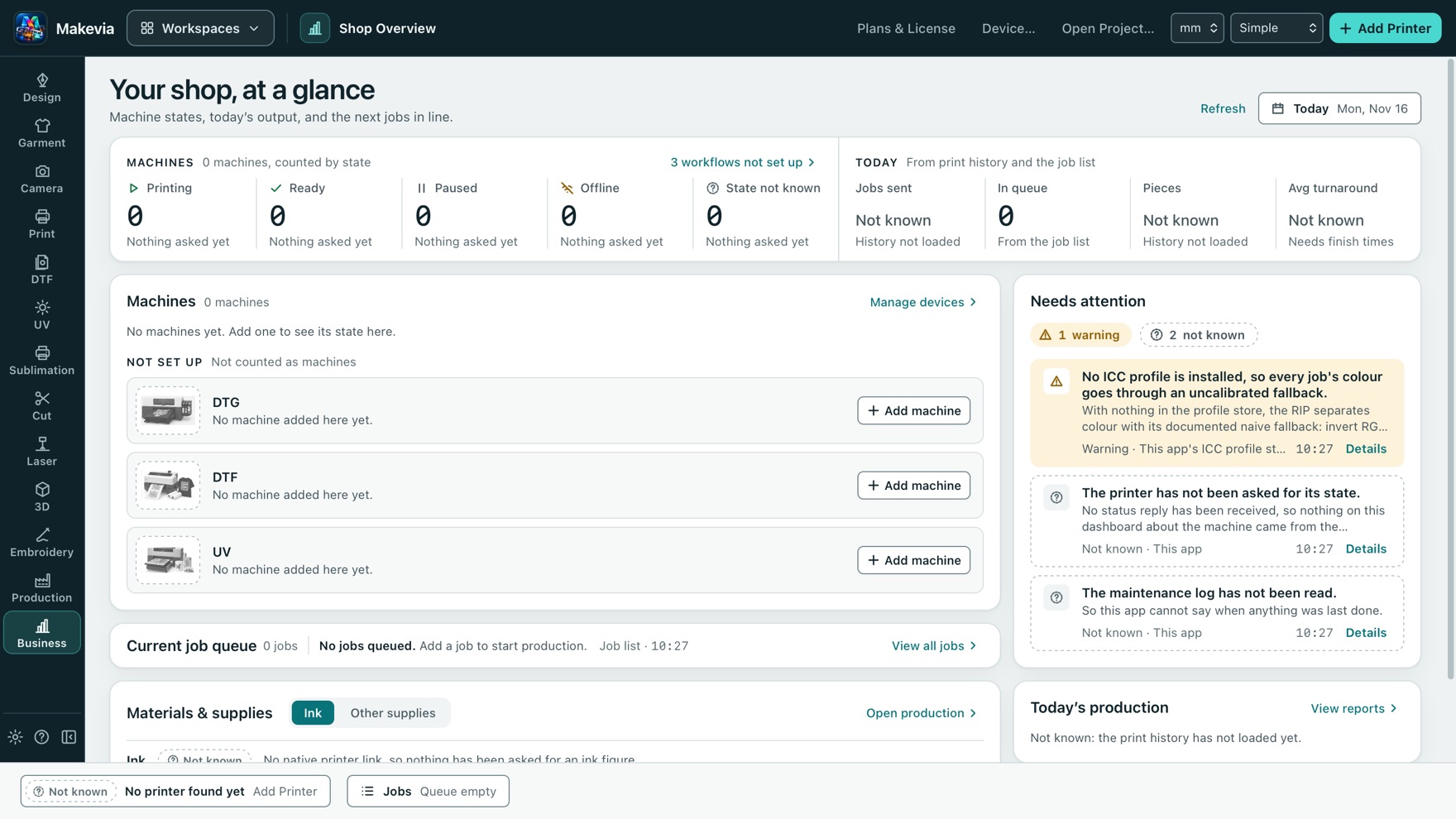
See every production path
Each Makevia workspace keeps the artwork, device context, preparation controls, and production checks together. Every picture below is an actual app screen with no machine connected. The artwork is a sample, and what each workspace has not verified is labeled on screen. Select a picture to see it full size.
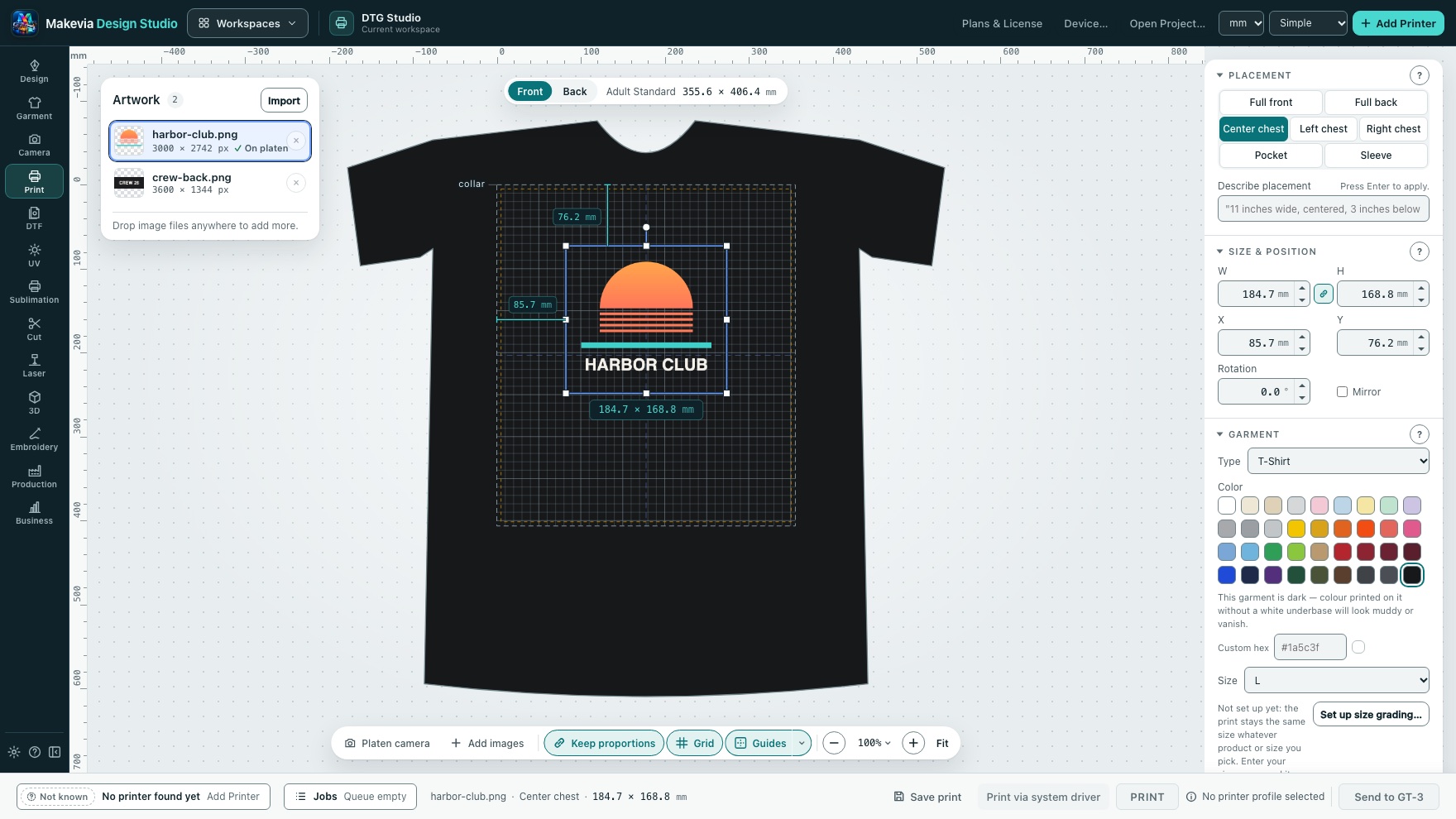
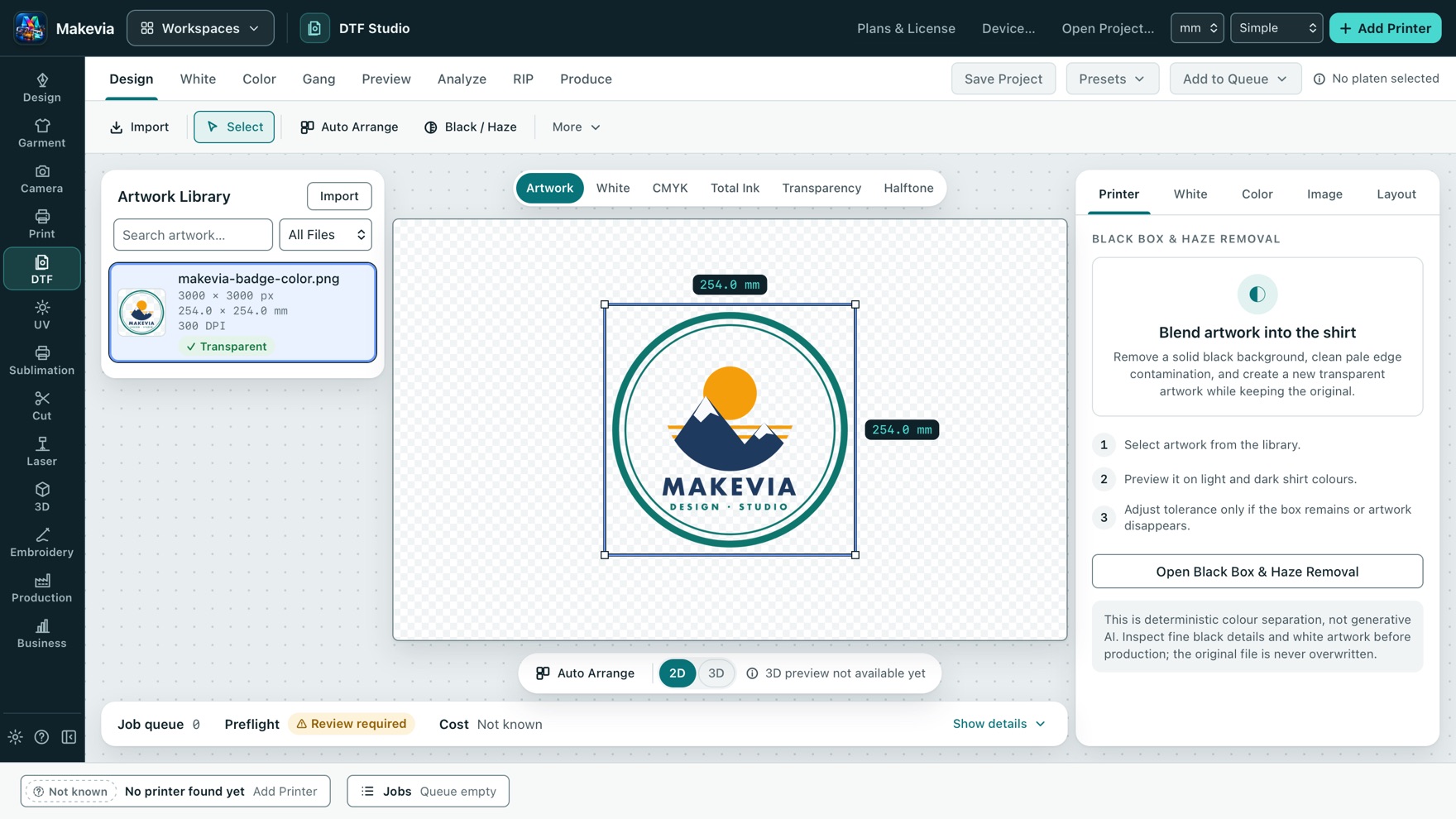
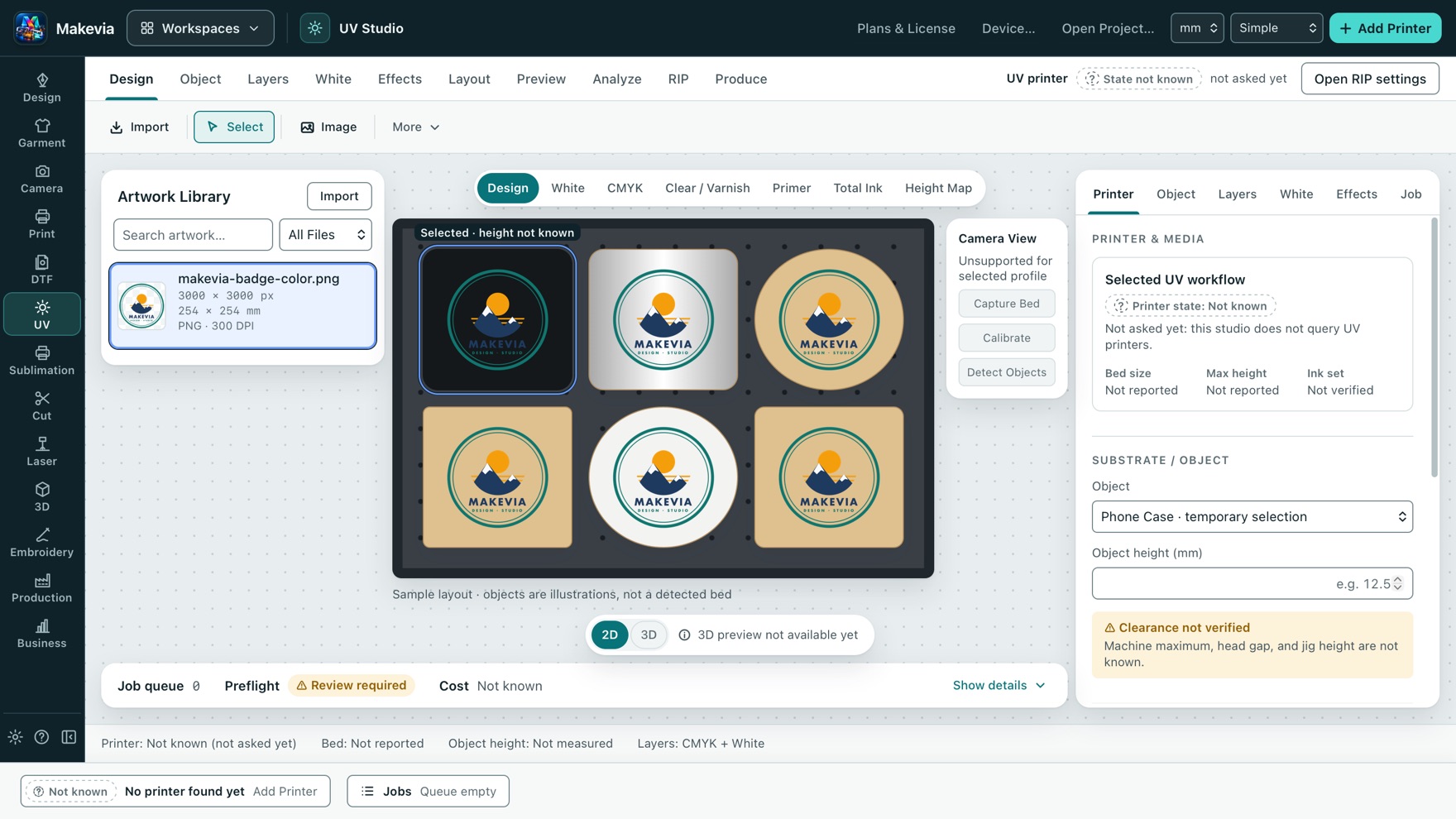
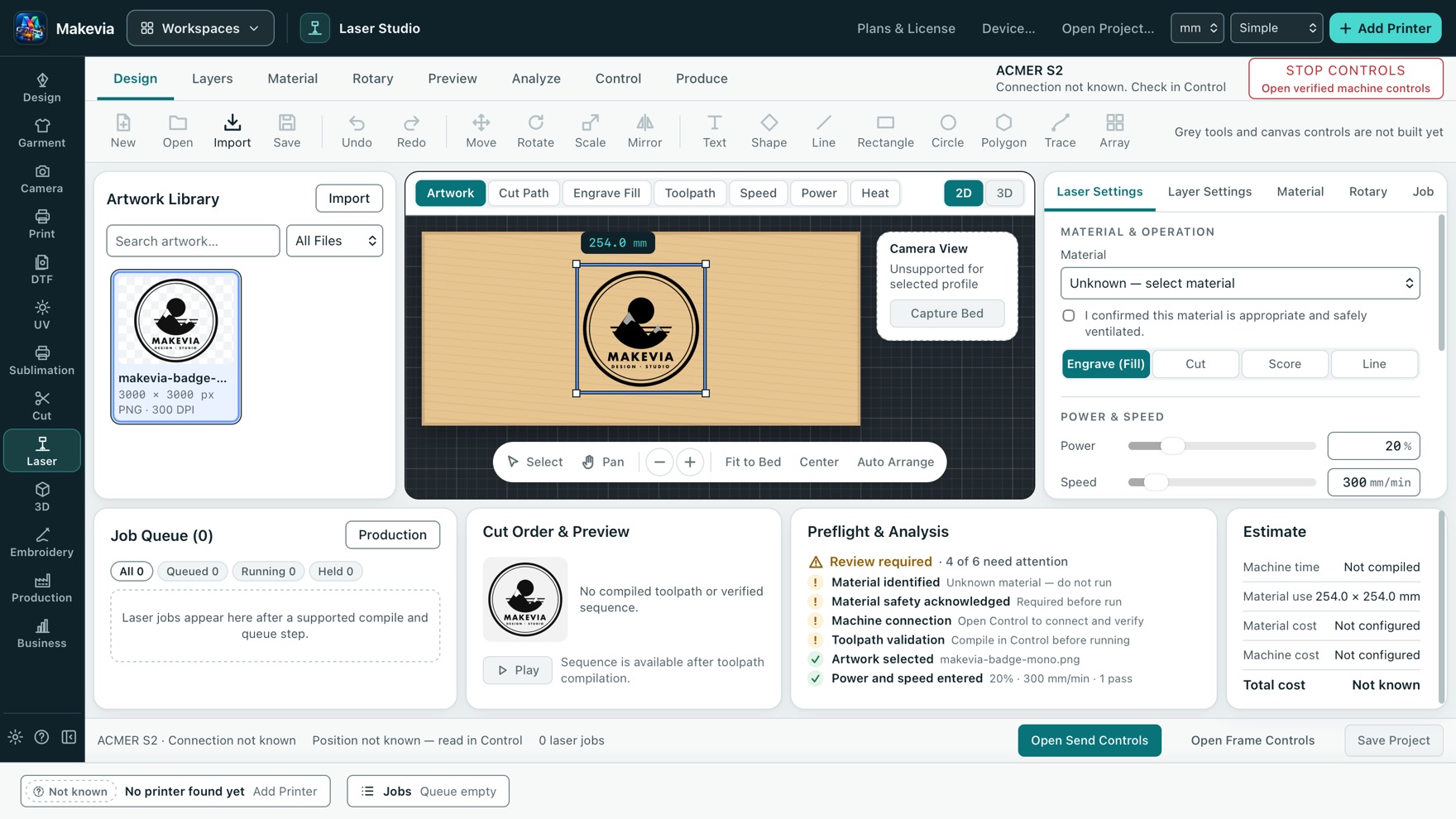
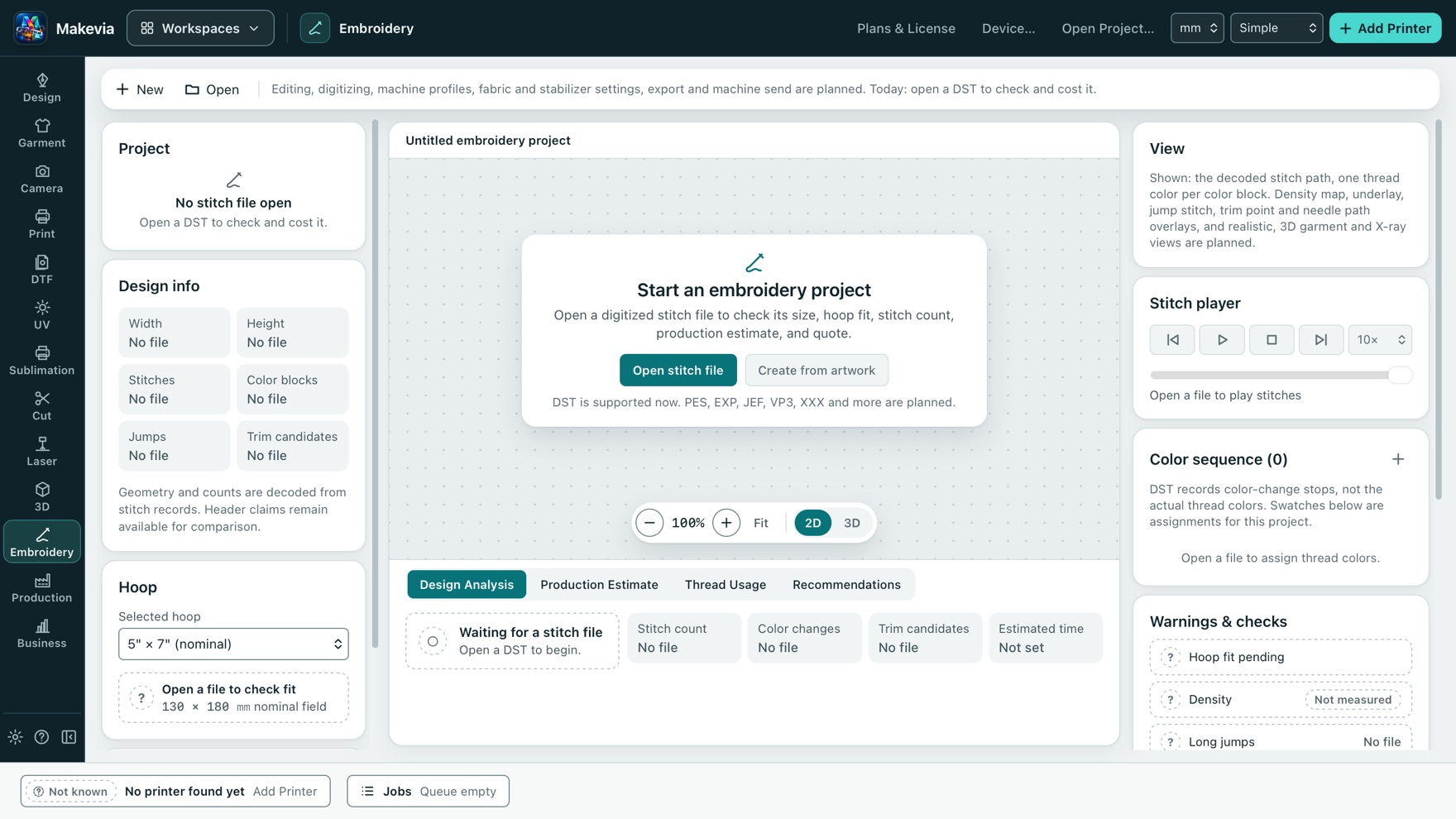
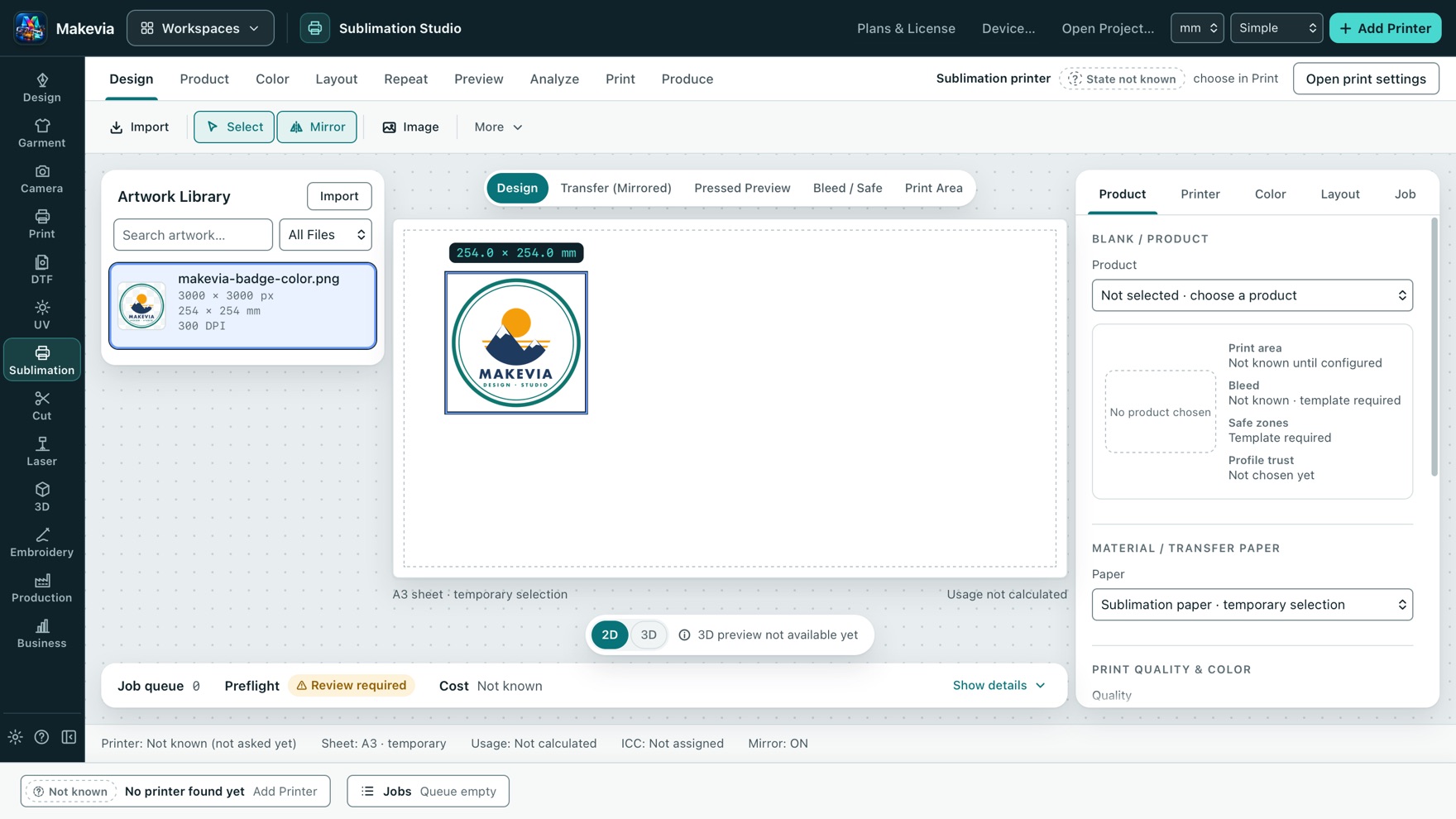
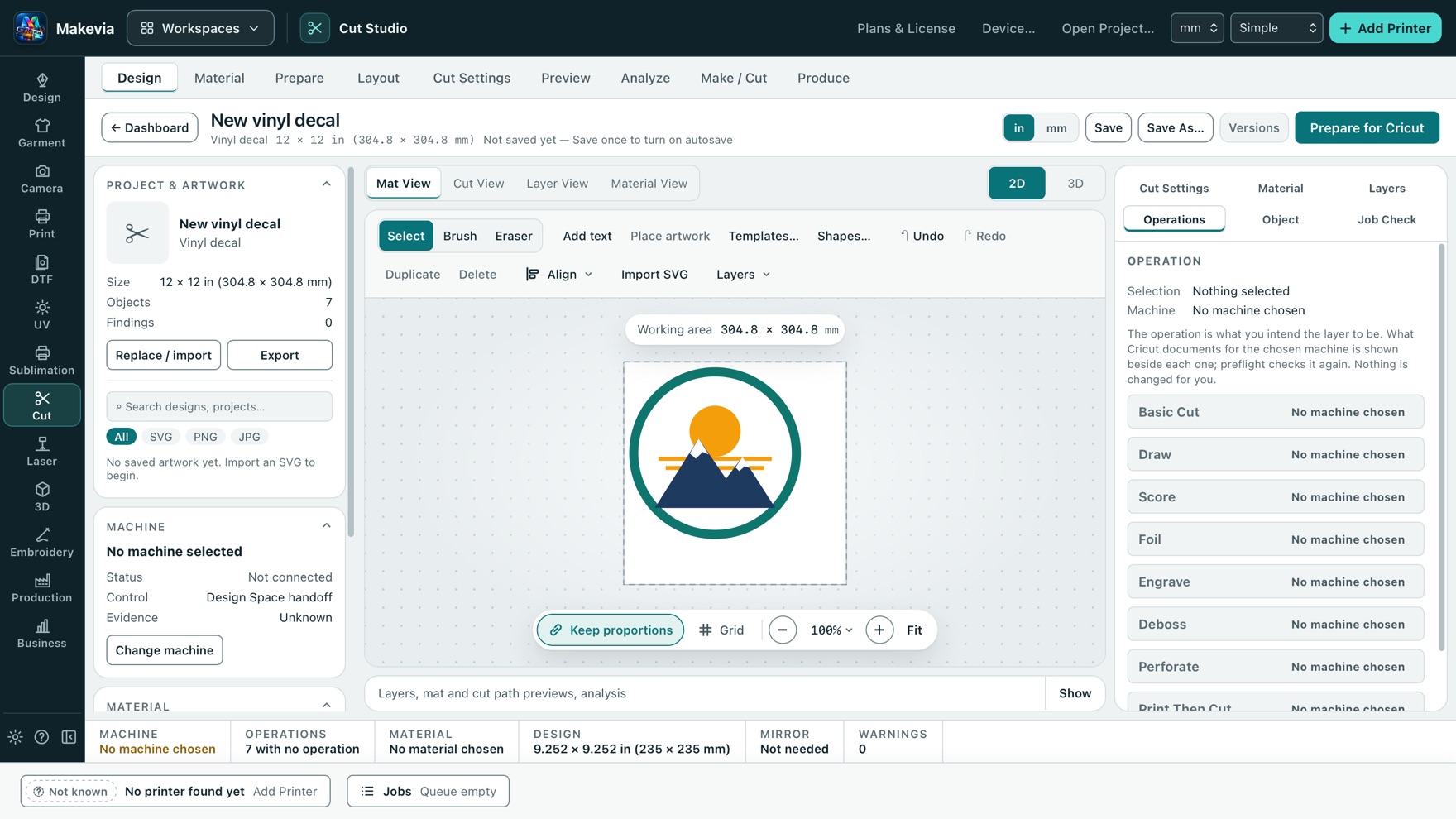
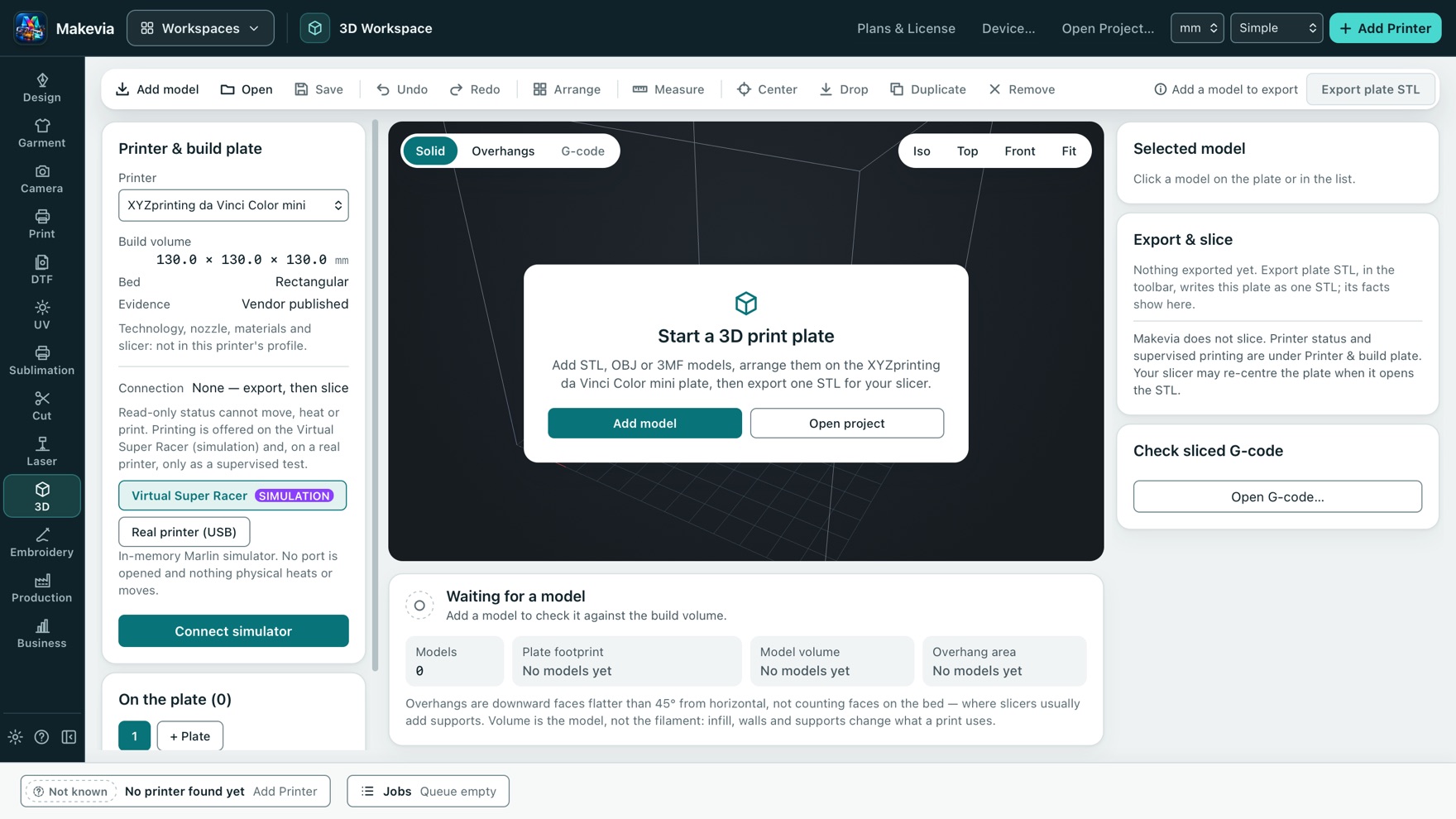
DTF + DTG artwork cleanup
Prepare artwork for a cleaner blend into dark garments with an immediate before-and-after preview. The final print still depends on the printer, ink, profile, substrate, and production settings.
Explore garment workflows
See it in action
A three-minute tour of today's Makevia screens: design, print checks, DTG, DTF, UV, sublimation, the platen camera, laser, costing and production. DTF, UV and laser are shown as beta; costs and queue jobs are labelled examples.
Artwork readiness
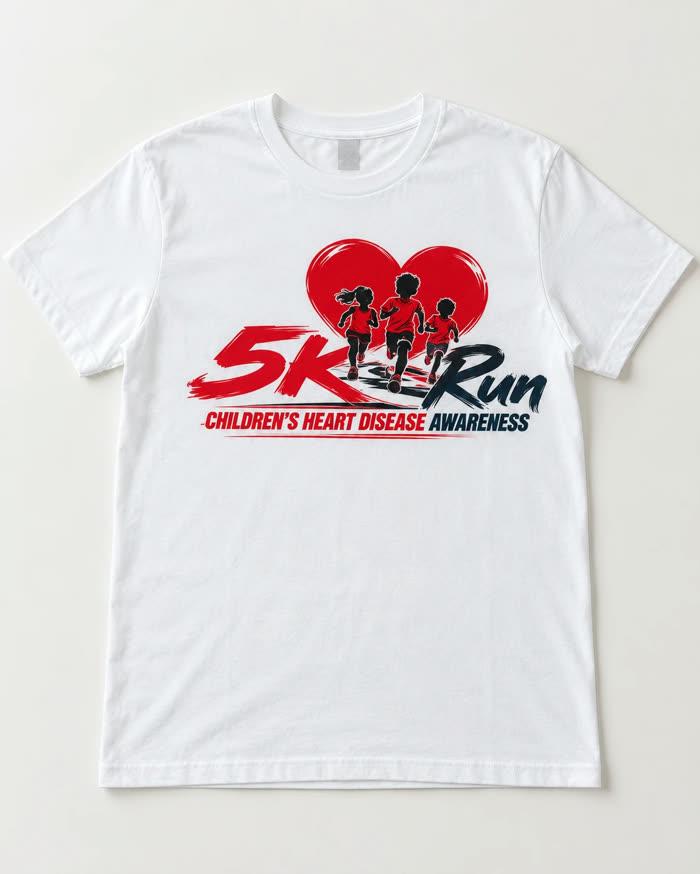
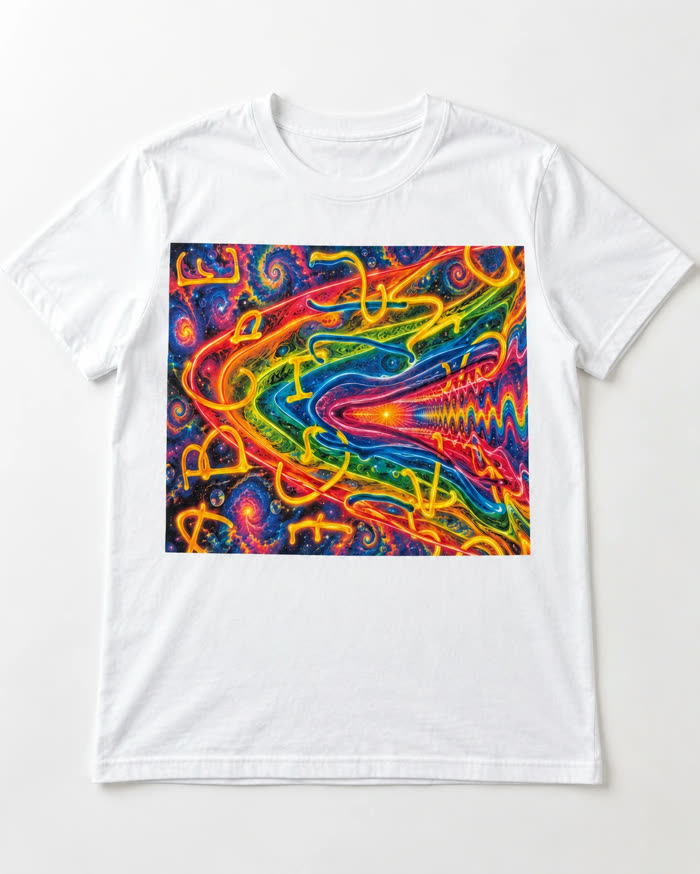
Art from image generators often looks right on screen but isn’t ready to print. Makevia checks it at your final print size: effective resolution, details too thin to print, transparency, white-ink behavior, and placement on the platen. The result is an explainable checklist—not a magic “fixed” badge. These checks and fixes are standard image processing, not AI.
Honest device support
Tested on real hardware with this app—today the Brother GT-361, through Brother’s own driver. The app lists what was confirmed and which tests are still open.
Makevia has a working path—a printer driver, or direct control for the ACMER laser—that hasn’t been fully proven on that machine. The app labels it and shows what is still open.
Makevia prepares, checks or exports the file; your machine’s own software, such as Cricut Design Space or a slicer, runs the machine.
Founding customer offer
Founding customers keep the terms attached to their original purchase. Future prices may change for new customers.
$19.99/month
Flexible access with recurring monthly billing.
Best value
$179.99/year
Save compared with twelve monthly payments.
$349one time
Lifetime access to the purchased Makevia edition.
Prices are USD. Taxes may be added at checkout. “Lifetime” means the supported life of this product edition, not a promise of every future paid edition, cloud service, or third-party cost.
Makevia Design Studio 0.1.38 for Mac
The universal Mac installer is signed with Apple Developer ID, notarized by Apple, and tested on both Apple silicon and Intel Macs.
Requires macOS. Never download Makevia from an unlisted mirror. Updates are accepted only when signed by Makevia.
Support
For the fastest help, include your Makevia version, Mac version, workflow category, device model, support-status label, and the exact step that failed. Do not email customer artwork unless support asks for it.
Policies
These policies are an operational starting point and should be reviewed by qualified counsel for your business and jurisdiction before paid launch.
Our privacy policy, terms of use, software licence (EULA), refund and cancellation policy and lifetime-licence terms are on one page: Privacy · Terms · EULA · Refunds and cancellation · Lifetime licence.
We aim for this website and Makevia to meet WCAG 2.1 Level AA. If anything is hard to use with a keyboard, screen reader, zoom, or other assistive technology, email support@makeviastudio.com with the page and the problem and we will respond and work on a fix.
Device names describe workflows or recognized families, not universal compatibility. “Physically verified” applies only to the behavior and configuration documented in Makevia. “Partially verified” contains known, visible gaps. “Artwork preparation” means Makevia prepares or inspects files without claiming direct machine control. Firmware, drivers, conversions, consumables, cables, operating systems, and third-party changes may alter results. Never treat a category image or device listing as proof that your exact model is controlled.
NEW · SKETCH TO STUDIO
A notebook idea. A quick pencil sketch. A character you have been imagining. Turn your own drawing into a polished AI illustration, then bring it into your production workflow.
Private preview · generation runs through the owner’s connected studio service. AI usage is separate from the desktop license.
Workflow illustration · not an actual AI-generated before-and-after result.